Transactions Journal
The Transactions Journal allows users to view a list of charges posted on each account by each cashier. Exporting the report enables users to download and view a summary or detailed version of the report in Excel. When an account number is available, it’s linked to the account and opens in a separate tab when selected. It’s not available if it does not appear in the report. As a property manager, user can use this information to export accounts receivable postings from Stay and import them into third party software.
Perform the following steps to generate the report:
Navigate to Reports ➜ All Reports ➜ Transactions Journal (under Accounting).
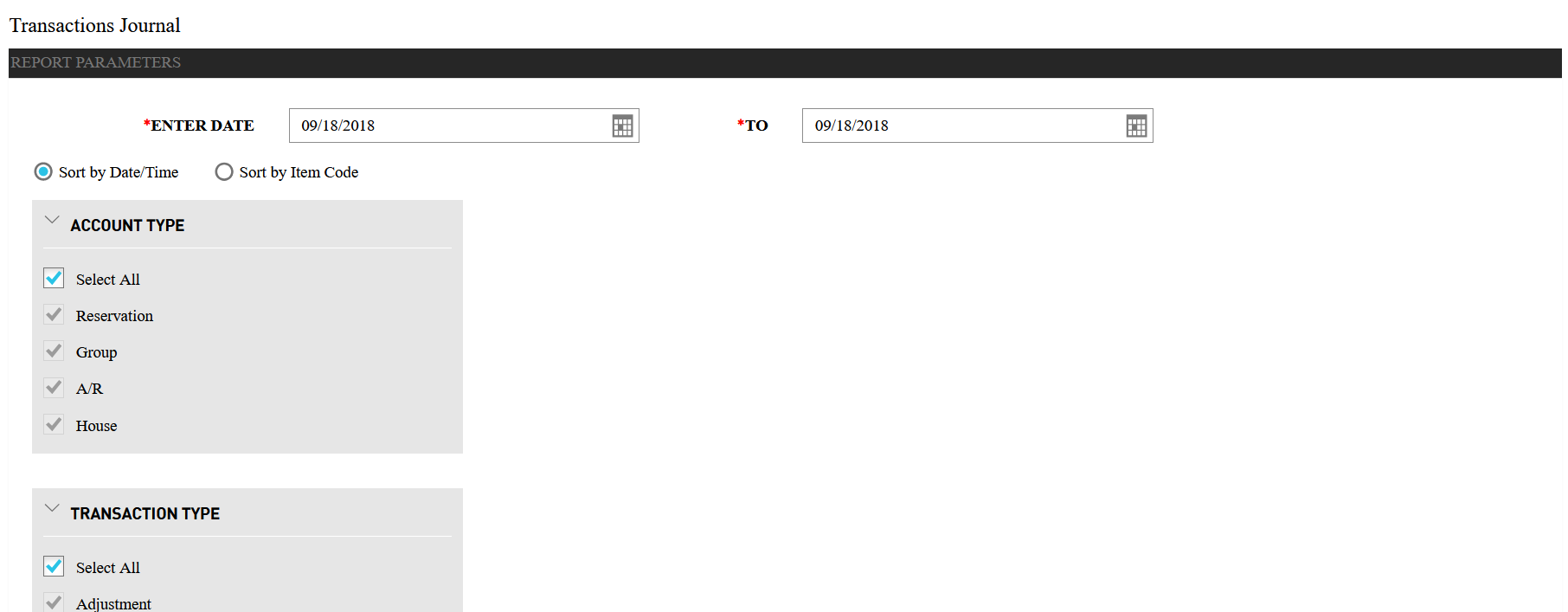
Select a date from the calendar to generate dates for the report.
Choose which sorting options to include in the report:
|
Field |
Description |
|---|---|
|
Sort by Date/Time |
Sorts the report alphanumerically by date and time. |
|
Sort by Item Code |
Sort the report alphanumerically by item code. |
Choose which Account Type field to include in the report.
Choose which Transaction Type field to include in the report.
Click Generate. The report with selected data appears.
Click Print to send a copy of the report to the printer.
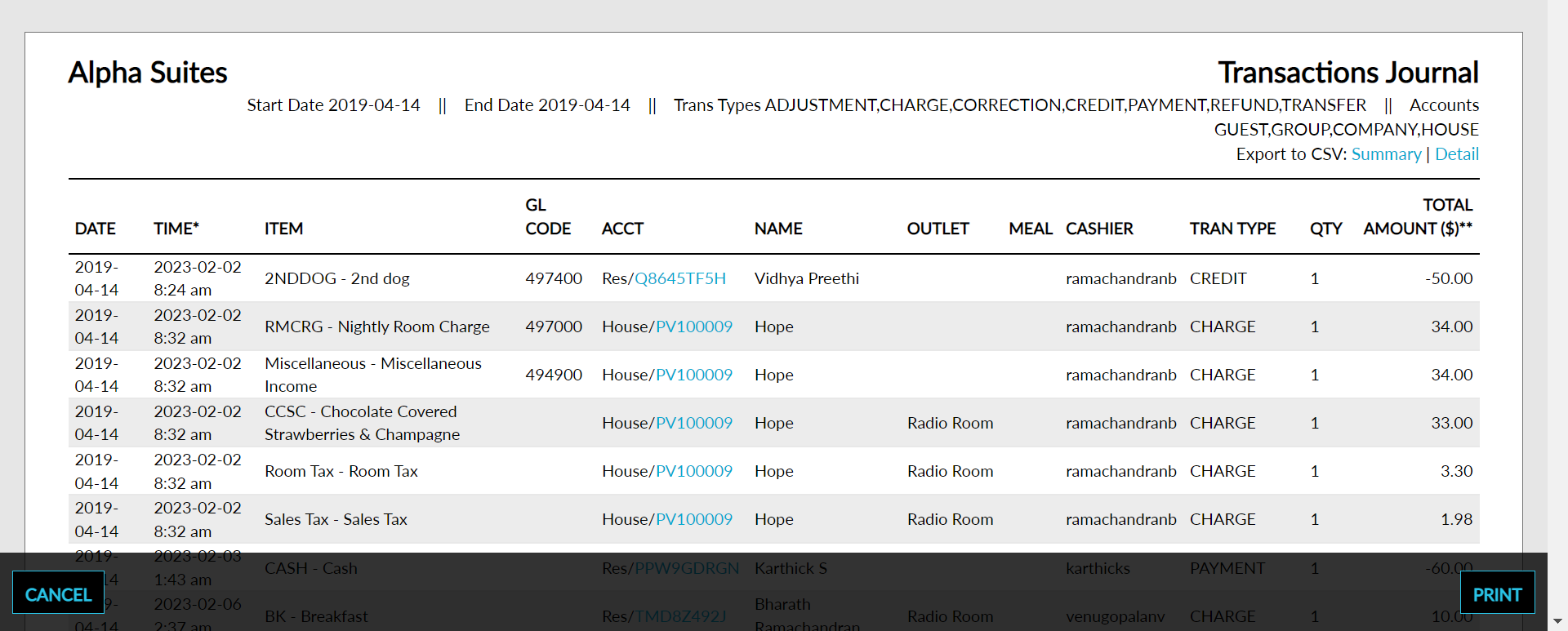
Sample Report
Report Parameters
This report displays the following parameters:
|
Field |
Description |
|---|---|
|
Date |
The date the transaction item was made |
|
Time* |
The time that each transaction was made including hour, minutes, and seconds. |
|
Item |
The posted item grouped by category of each transaction. |
|
GL Code |
The account code of each posting item that has at least one transaction identified as revenue on the selected date. |
|
ACCT |
The account type and number associated with each account. |
|
Name |
The name on the account. |
|
Outlet |
The name of the outlet where the item was utilized. |
|
Meal |
The name of the meal period where the item was utilized. |
|
Cashier |
The cashier ID used to post transactions. |
|
Tran Type |
Identifies the transaction type: charge, credit, payment, refund, adjustment and correction. |
|
Qty |
The number of items utilized. |
|
Total Amount** |
The sum of all postings listed in the report. |
Click the help icon in the top right corner of the dynamic report section to view the necessary information relevant to the report.